All samples › Templates
Process framework template
A desktop flow template to start every process from: one transaction per work item, business and system exceptions, retries with recovery, log, run report, settings per environment and 24 tests, in local functions with a note on every action.
Desktop flow template · Intermediate · Requires PAD only · Tested on PAD 2.73.155 · v1.0.3
Step-by-step setup · Download the sample (zip) · Changelog
For e-learning purposes only: try it in a test environment with the sample data, and review it before any real use. Disclaimer
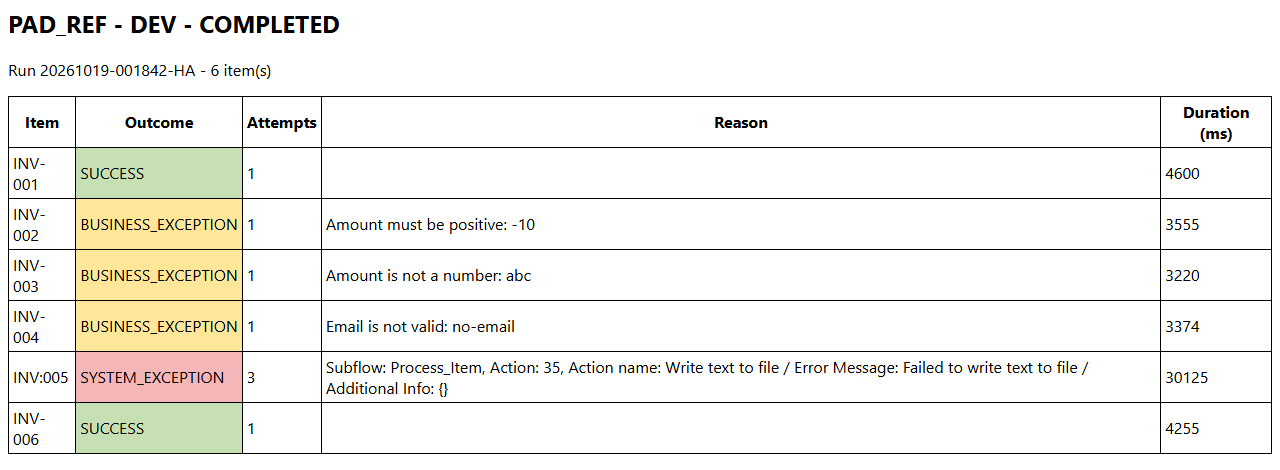
The run report of Main on the 6 demo items: 2 successes, 3 business exceptions, 1 system exception after 3 attempts
Try it
From the path that asks the least to the one that asks the most. Stop at the one you need.
| Path | You create | Needs | Time |
|---|---|---|---|
| 1. Rebuild the template Every subflow and variable in place, saved as a template of your environment. |
10 local subflows, 35 inputs, 35 outputs | PAD only | 90 min |
| 2. A process from the template New › Flow from template, then the regions the code marks TEMPLATE. |
The regions marked TEMPLATE in 4 subflows | The template | Depends on your flow |
Problem
Power Automate Desktop can now save a desktop flow as a template: in the designer, Save as with the type Template, then Publish. New › Flow from template gives every new process its own copy, subflows, variables and notes included (Microsoft Learn, version 2.72 or later). Until now each process started from an empty flow and wrote again its settings, its error handling and its log, each in its own way, and a reviewer read every flow from scratch.
A template is only worth what it holds. This one holds what every process that works through a list of items needs, tested, so that a new process writes only its business part.
Solution
This first template of the lab draws on the public
power-automate-desktop-framework (PAD 2.57)
and rebuilds it for templates. Main is a state machine in five coloured regions (minimal state, guarded run, run
status, end, clean-up) that calls 11 local functions. Three choices come first:
- Local functions with declared inputs and outputs. Each function receives its inputs (
in_loc_), returns its outputs (out_loc_) and sees nothing else;Testscalls each one alone. - Numbered regions, one colour per role. Collapsed,
Mainreads in 13 lines; a region number names the place to change (region 2.1 ofProcess_Item). - A note on every action. Every action, condition, loop and region carries a note (Add note, at the top of its dialog), 525 in all: the technical reason, the business rule or what a learner should keep.
Each work item is one transaction with one outcome: SUCCESS, BUSINESS_EXCEPTION (the data breaks a rule, never
retried) or SYSTEM_EXCEPTION (an action failed: screenshot, applications closed, pause, retry). Around it: settings
in a CSV file overridden per environment, a log with levels, a CSV and HTML run report, a JSON summary for the cloud
flow, an optional Outlook notification and a Tests subflow of 24 cases. A process made from the template changes
what its code marks TEMPLATE, in four subflows.
Techniques: A desktop flow template to start every process from · Local function with a contract · Numbered regions, one colour per role · A note on every action · One outcome per work item, retries only for system exceptions · Errors returned, never thrown · Settings in a CSV file, overridden per environment · A Tests subflow that calls every function · Outlook draft instead of a send
What it adds to power-automate-desktop-framework
The reference was built for PAD 2.57, before desktop flow templates existed. What the template changes, topic by topic, the three choices above first:
| power-automate-desktop-framework | Process framework template | |
|---|---|---|
| Contracts | About 90 global variables shared by 29 global subflows | 11 local functions with declared inputs and outputs (68 in all); only Main and Tests are global |
| Reading the canvas | Regions without colours | Numbered regions, one colour per role; collapsed, Main reads in 13 lines |
| Explaining the flow | Comments | A note on every action, condition, loop and region (525), plus comments for the reader |
| Distribution | A flow to copy, or a solution to import | A desktop flow template: New › Flow from template |
| Dependencies | 8 utility desktop flows called with Run desktop flow, their ids replaced before the first run | None: every utility is a local function inside the template |
| Outcome of an item | One error message | SUCCESS, BUSINESS_EXCEPTION (never retried) or SYSTEM_EXCEPTION (retried after a recovery) |
| Resilience | Retries counted in the work item database | Retries per item with a screenshot, the applications closed and a pause; a circuit breaker after a number of system exceptions in a row; in_glob_num_MaxItems for a short run |
| Log | One child desktop flow run per log line | One file write per line, filtered by level; WARN and above also in the run log of Power Automate |
| Settings | JSON, Excel, database, SharePoint or Dataverse read by a child flow, each key read without a default | Config.csv editable in Excel: defaults in the flow, rows per environment, numbers checked, the file created when missing |
| Result of the run | Output_IsSuccess and ErrorMessage |
The same, plus a JSON summary checked by reading it back, a CSV and HTML report and a screenshot per failed attempt |
| Name of the current step | An action that fails on purpose in each subflow, to read its name in the error | The step name is given to the log; nothing fails on purpose |
| Tests | None | Tests: 24 cases, one per function and per recovery path |
Kept from power-automate-desktop-framework: the split between reading the work items and processing one item, the recovery of the applications before a retry, the error report sent to a person, one folder layout per project.
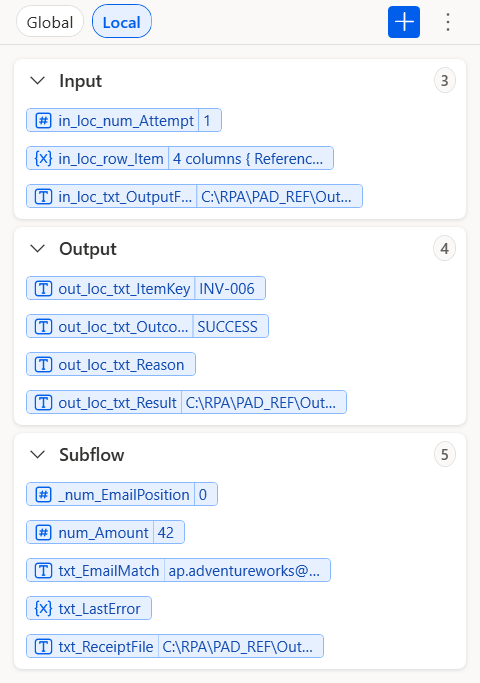
Local functions: Process_Item receives 3 inputs and returns 4 outputs (Variables pane, section Local, values of the last item)
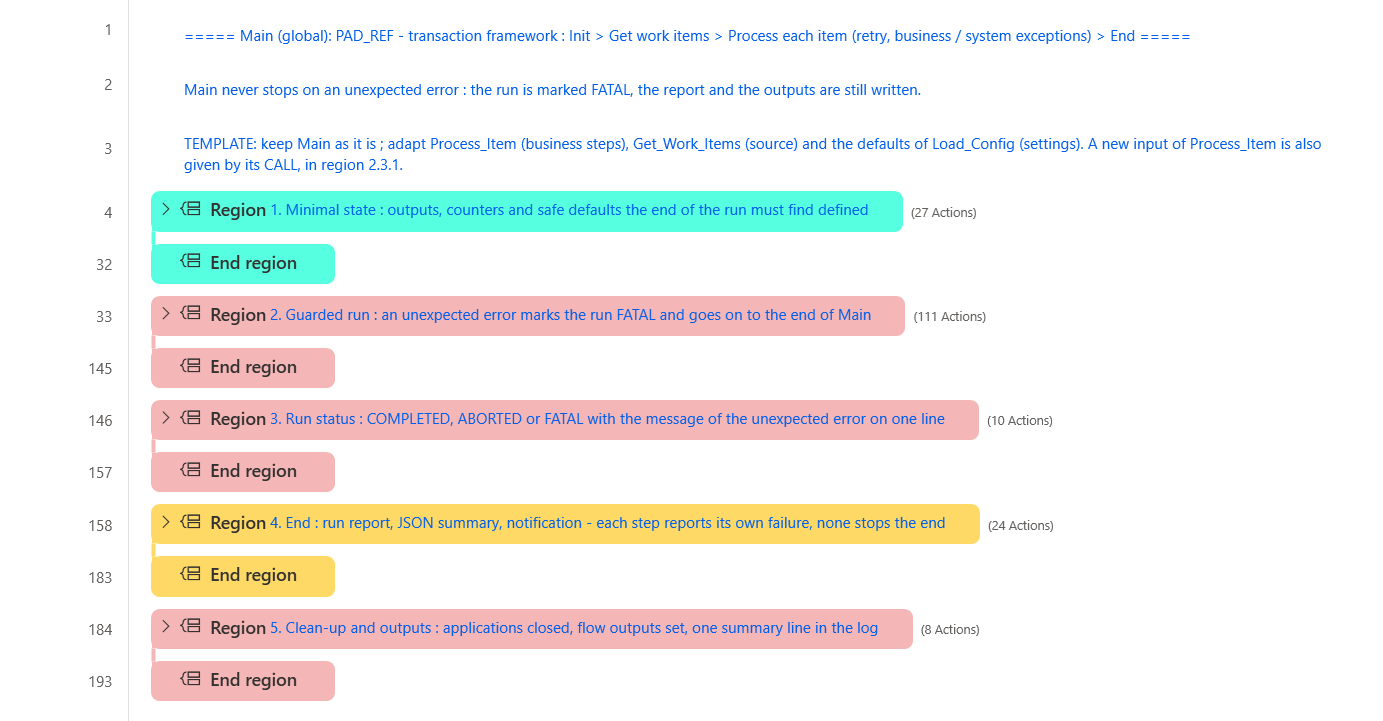
Coloured regions: Main collapsed, the whole run in 5 numbered regions
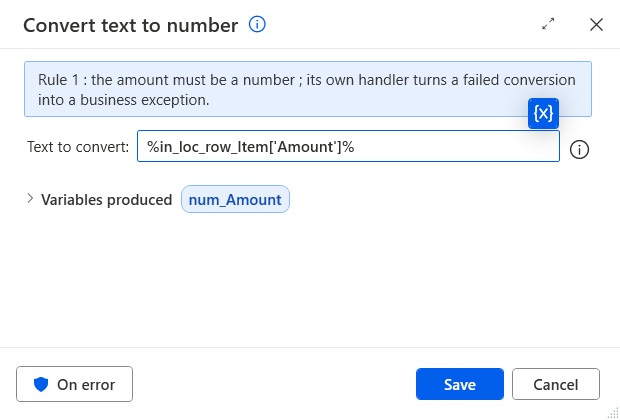
A note on every action: double-click an action, its note is at the top of the dialog
Make a process from it
- In the console, New › Flow from template: the name of your process,
PAD_REFunder My templates, Create. Every subflow, variable and note comes with it. - Change what the code marks
TEMPLATE:
| Subflow | What to change |
|---|---|
Main |
keep Main as it is ; adapt Process_Item (business steps), Get_Work_Items (source) and the defaults of Load_Config (settings). A new input of Process_Item is also given by its CALL, in region 2.3.1. |
Load_Config |
add the default of every business setting in region 2, so the key exists even when Config.csv does not list it. |
Get_Work_Items |
replace region 3 by the real source (Excel, SQL, API, export of a business application), give region 1 the columns of that source and remove the demo part of region 2 ; keep one row per item. |
Process_Item |
replace regions 2.1 (business rules) and 2.2 (application steps) by the real process, and the key column read in region 1 ; keep the rest of regions 1, 2 and 3. |
- Run
Tests, thenMain. Step by step: A process from the template.
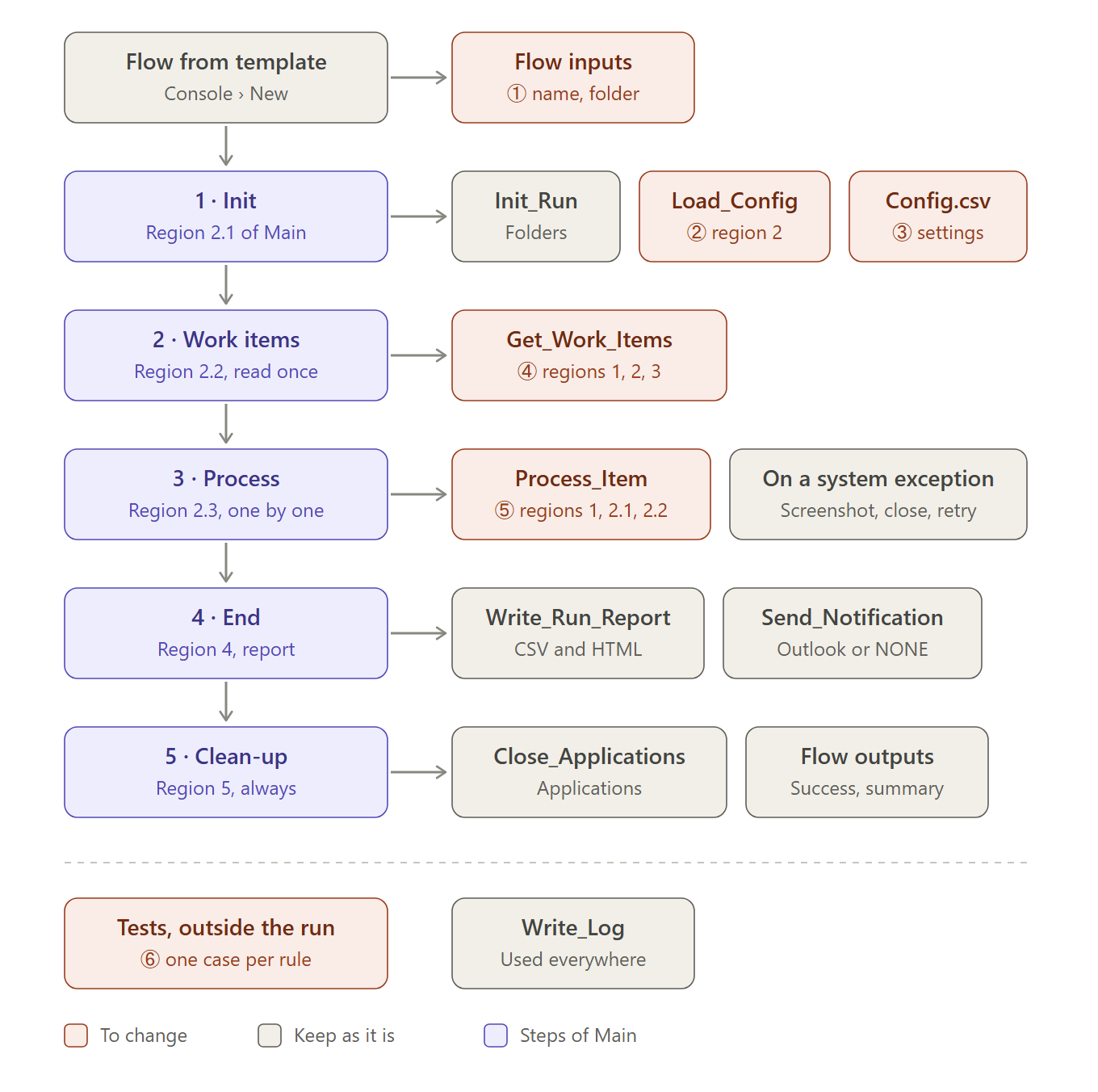
Where a process changes the template: the coral boxes, numbered as in the example below; the grey ones stay as they are
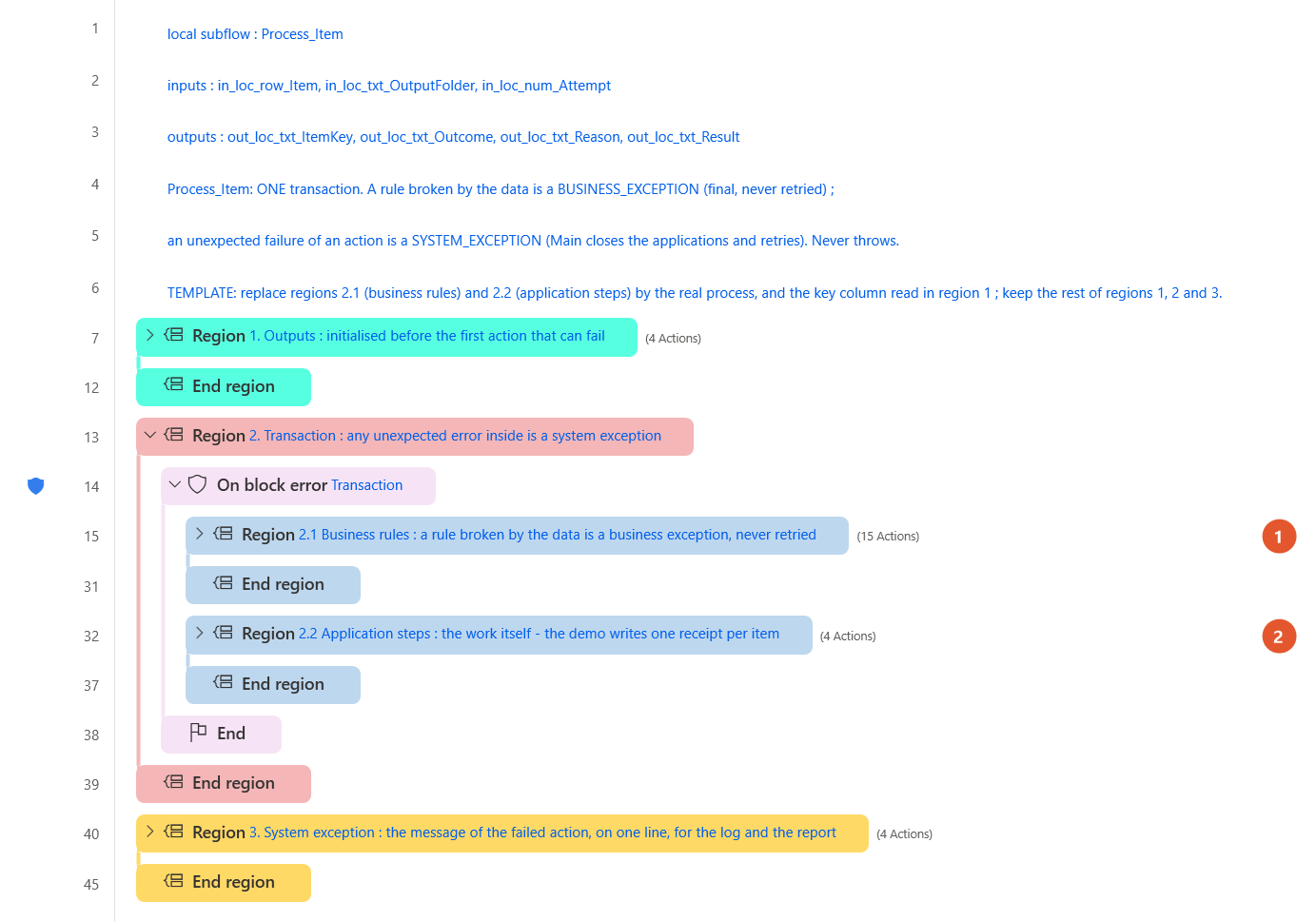
Process_Item: marker 1 on region 2.1 (business rules), marker 2 on region 2.2 (application steps)
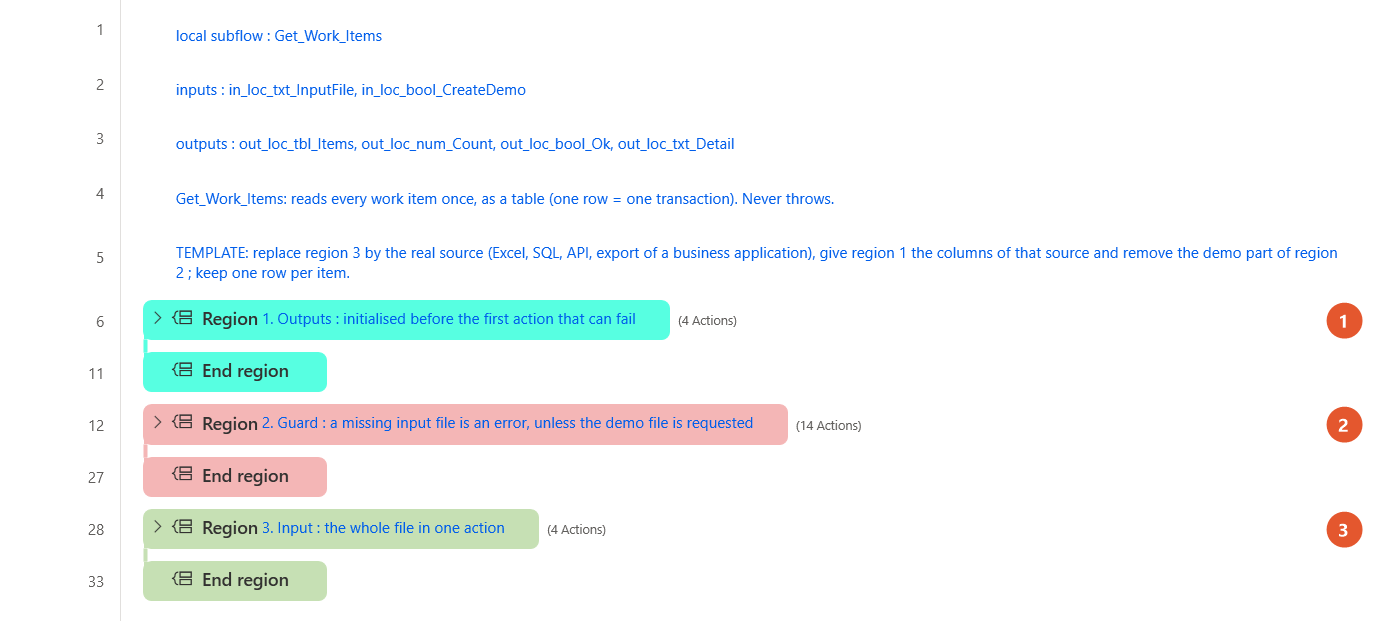
Get_Work_Items: markers on regions 1 (columns), 2 (demo part) and 3 (the source)
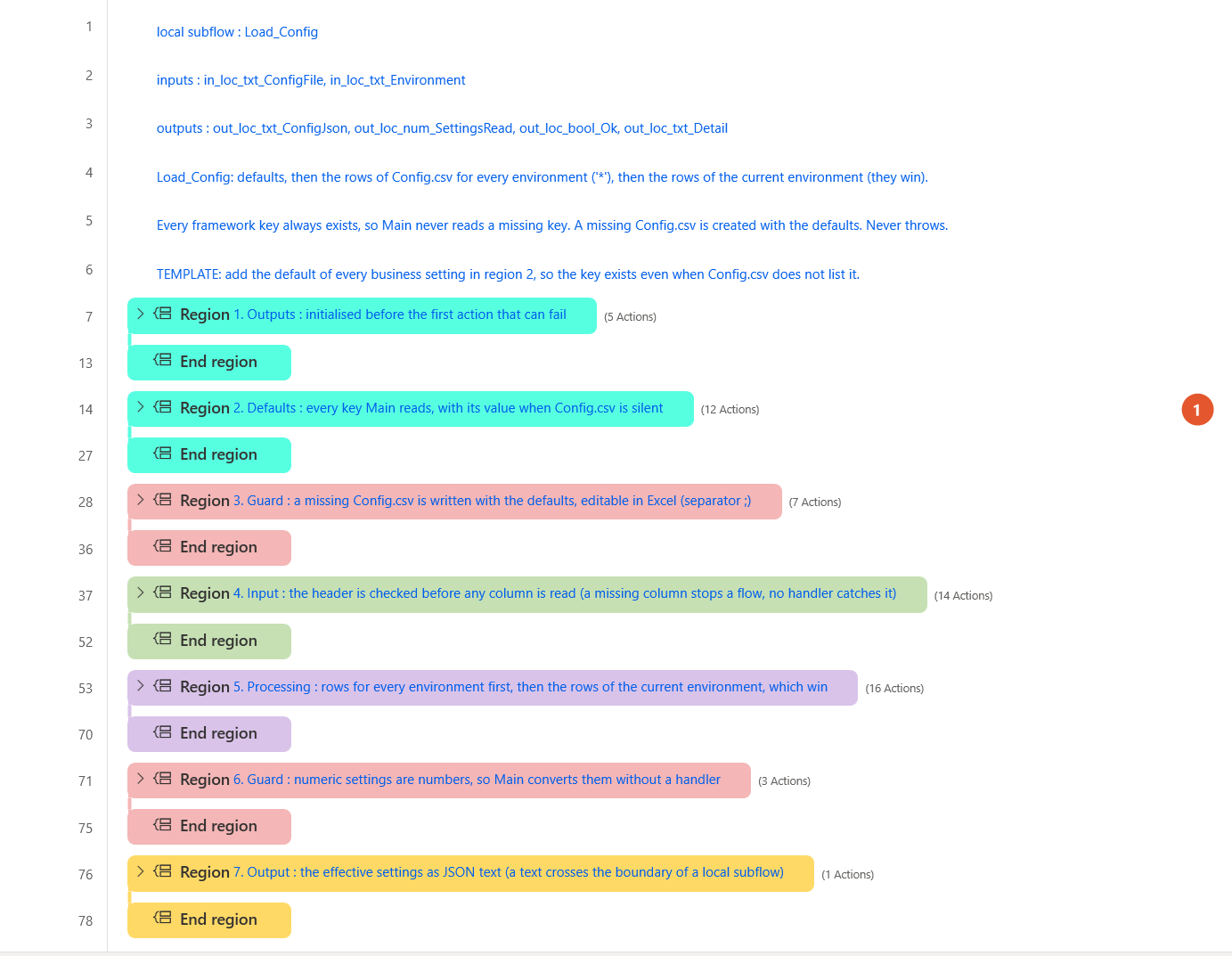
Load_Config: the marker shows region 2, the defaults of the settings
Inputs and outputs of the flow:
| Inputs | Type | Description | Example |
|---|---|---|---|
in_glob_num_MaxItems |
Number | 0 = every item; n = stop after n items (a short run) | 0 |
in_glob_txt_Environment |
Text | Selects the rows of Config.csv: DEV, TEST, PROD or any name | DEV |
in_glob_txt_LogLevel |
Text | Lowest level written to the log: DEBUG, INFO, WARN, ERROR or FATAL | INFO |
in_glob_txt_ProcessName |
Text | Name of the process in the log, the report and the notification | PAD_REF |
in_glob_txt_ProjectFolder |
Text | Root of the folders Config, Input, Output, Logs, Evidence and Reports, created when missing | C:\RPA\PAD_REF |
| Outputs | Type | Description | Example |
|---|---|---|---|
out_glob_bool_Success |
Boolean | True when the run reached COMPLETED; items in exception do not make it fail | True |
out_glob_txt_ErrorMessage |
Text | Why a FATAL or ABORTED run stopped, on one line; empty after a COMPLETED run | Input file not found: C:\RPA\PAD_REF\Input\work-items.csv |
out_glob_txt_RunSummary |
Text | JSON: run id, process, environment, status, counts, retries, duration, report, error | {"runId": "20261019-001842-HA", "status": "COMPLETED", "itemsRead": 6, ...} |
The 11 local functions: each one receives its inputs, returns its outputs and sees nothing else.
| Function | Inputs | Outputs | Role |
|---|---|---|---|
Verify |
5 | 1 | Writes one PASS or FAIL line of Tests to the report. |
Init_Run |
2 | 8 | Creates the project folders (missing parents included) and builds the run id and the name of the daily log file. |
Write_Log |
6 | 1 | One line per event, filtered by level; WARN and above also go to the run log of Power Automate. |
Load_Config |
2 | 4 | Defaults, then the rows of Config.csv for every environment, then the rows of the current environment; numbers checked; returned as JSON. |
Get_Work_Items |
2 | 4 | Reads every work item once, as a table (one row = one transaction); writes the demo file when asked. |
Process_Item |
3 | 4 | One transaction: the business rules, the application steps and the outcome of the item. |
Take_Evidence |
4 | 2 | A screenshot named after the run, the item and the attempt. |
Close_Applications |
1 | 2 | Closes the running processes of a list: at start, before a retry and at the end. |
Write_Run_Report |
4 | 4 | The result of every item as a CSV file and as an HTML page. |
Send_Notification |
5 | 2 | The HTML report by Outlook, as a draft or sent; NONE turns it off. |
To_Json_Text |
1 | 1 | Escapes a text for a JSON value. |
How it works
flowchart LR
  subgraph Main["<b>Main</b> · main"]
    direction LR
    Main_1["1. Minimal state "]
    style Main_1 fill:#57FFE1,stroke:#57606a,color:#1f2328
    Main_2["2. Guarded run "]
    style Main_2 fill:#F4B6B6,stroke:#57606a,color:#1f2328
    Main_1 --> Main_2
    Main_3["3. Run status "]
    style Main_3 fill:#F4B6B6,stroke:#57606a,color:#1f2328
    Main_2 --> Main_3
    Main_4["4. End "]
    style Main_4 fill:#FFD966,stroke:#57606a,color:#1f2328
    Main_3 --> Main_4
    Main_5["5. Clean-up and outputs "]
    style Main_5 fill:#F4B6B6,stroke:#57606a,color:#1f2328
    Main_4 --> Main_5
  end
  subgraph Init_Run["<b>Init_Run</b> · local function"]
    direction LR
    Init_Run_1["1. Outputs "]
    style Init_Run_1 fill:#57FFE1,stroke:#57606a,color:#1f2328
    Init_Run_2["2. Guard "]
    style Init_Run_2 fill:#F4B6B6,stroke:#57606a,color:#1f2328
    Init_Run_1 --> Init_Run_2
    Init_Run_3["3. Run id and log file "]
    style Init_Run_3 fill:#D9C3E9,stroke:#57606a,color:#1f2328
    Init_Run_2 --> Init_Run_3
    Init_Run_4["4. Folders "]
    style Init_Run_4 fill:#FFD966,stroke:#57606a,color:#1f2328
    Init_Run_3 --> Init_Run_4
  end
  subgraph Write_Log["<b>Write_Log</b> · local function"]
    direction LR
    Write_Log_1["1. Output and level ranks "]
    style Write_Log_1 fill:#57FFE1,stroke:#57606a,color:#1f2328
    Write_Log_2["2. Guard "]
    style Write_Log_2 fill:#F4B6B6,stroke:#57606a,color:#1f2328
    Write_Log_1 --> Write_Log_2
    Write_Log_3["3. Output "]
    style Write_Log_3 fill:#FFD966,stroke:#57606a,color:#1f2328
    Write_Log_2 --> Write_Log_3
  end
  subgraph Load_Config["<b>Load_Config</b> · local function"]
    direction LR
    Load_Config_1["1. Outputs "]
    style Load_Config_1 fill:#57FFE1,stroke:#57606a,color:#1f2328
    Load_Config_2["2. Defaults "]
    style Load_Config_2 fill:#57FFE1,stroke:#57606a,color:#1f2328
    Load_Config_1 --> Load_Config_2
    Load_Config_3["3. Guard "]
    style Load_Config_3 fill:#F4B6B6,stroke:#57606a,color:#1f2328
    Load_Config_2 --> Load_Config_3
    Load_Config_4["4. Input "]
    style Load_Config_4 fill:#C6E0B4,stroke:#57606a,color:#1f2328
    Load_Config_3 --> Load_Config_4
    Load_Config_5["5. Processing "]
    style Load_Config_5 fill:#D9C3E9,stroke:#57606a,color:#1f2328
    Load_Config_4 --> Load_Config_5
    Load_Config_6["6. Guard "]
    style Load_Config_6 fill:#F4B6B6,stroke:#57606a,color:#1f2328
    Load_Config_5 --> Load_Config_6
    Load_Config_7["7. Output "]
    style Load_Config_7 fill:#FFD966,stroke:#57606a,color:#1f2328
    Load_Config_6 --> Load_Config_7
  end
  subgraph Get_Work_Items["<b>Get_Work_Items</b> · local function"]
    direction LR
    Get_Work_Items_1["1. Outputs "]
    style Get_Work_Items_1 fill:#57FFE1,stroke:#57606a,color:#1f2328
    Get_Work_Items_2["2. Guard "]
    style Get_Work_Items_2 fill:#F4B6B6,stroke:#57606a,color:#1f2328
    Get_Work_Items_1 --> Get_Work_Items_2
    Get_Work_Items_3["3. Input "]
    style Get_Work_Items_3 fill:#C6E0B4,stroke:#57606a,color:#1f2328
    Get_Work_Items_2 --> Get_Work_Items_3
  end
  subgraph Process_Item["<b>Process_Item</b> · local function"]
    direction LR
    Process_Item_1["1. Outputs "]
    style Process_Item_1 fill:#57FFE1,stroke:#57606a,color:#1f2328
    Process_Item_2["2. Transaction "]
    style Process_Item_2 fill:#F4B6B6,stroke:#57606a,color:#1f2328
    Process_Item_1 --> Process_Item_2
    Process_Item_3["3. System exception "]
    style Process_Item_3 fill:#FFD966,stroke:#57606a,color:#1f2328
    Process_Item_2 --> Process_Item_3
  end
  subgraph Take_Evidence["<b>Take_Evidence</b> · local function"]
    direction LR
    Take_Evidence_1["1. Outputs "]
    style Take_Evidence_1 fill:#57FFE1,stroke:#57606a,color:#1f2328
    Take_Evidence_2["2. Output "]
    style Take_Evidence_2 fill:#FFD966,stroke:#57606a,color:#1f2328
    Take_Evidence_1 --> Take_Evidence_2
  end
  subgraph Close_Applications["<b>Close_Applications</b> · local function"]
    direction LR
    Close_Applications_1["1. Outputs "]
    style Close_Applications_1 fill:#57FFE1,stroke:#57606a,color:#1f2328
    Close_Applications_2["2. Guard "]
    style Close_Applications_2 fill:#F4B6B6,stroke:#57606a,color:#1f2328
    Close_Applications_1 --> Close_Applications_2
    Close_Applications_3["3. Processing "]
    style Close_Applications_3 fill:#D9C3E9,stroke:#57606a,color:#1f2328
    Close_Applications_2 --> Close_Applications_3
  end
  subgraph Write_Run_Report["<b>Write_Run_Report</b> · local function"]
    direction LR
    Write_Run_Report_1["1. Outputs "]
    style Write_Run_Report_1 fill:#57FFE1,stroke:#57606a,color:#1f2328
    Write_Run_Report_2["2. Guard "]
    style Write_Run_Report_2 fill:#F4B6B6,stroke:#57606a,color:#1f2328
    Write_Run_Report_1 --> Write_Run_Report_2
    Write_Run_Report_3["3. Processing "]
    style Write_Run_Report_3 fill:#D9C3E9,stroke:#57606a,color:#1f2328
    Write_Run_Report_2 --> Write_Run_Report_3
    Write_Run_Report_4["4. Output "]
    style Write_Run_Report_4 fill:#FFD966,stroke:#57606a,color:#1f2328
    Write_Run_Report_3 --> Write_Run_Report_4
  end
  subgraph Send_Notification["<b>Send_Notification</b> · local function"]
    direction LR
    Send_Notification_1["1. Outputs "]
    style Send_Notification_1 fill:#57FFE1,stroke:#57606a,color:#1f2328
    Send_Notification_2["2. Guards "]
    style Send_Notification_2 fill:#F4B6B6,stroke:#57606a,color:#1f2328
    Send_Notification_1 --> Send_Notification_2
    Send_Notification_3["3. Output "]
    style Send_Notification_3 fill:#FFD966,stroke:#57606a,color:#1f2328
    Send_Notification_2 --> Send_Notification_3
  end
  subgraph To_Json_Text["<b>To_Json_Text</b> · local function"]
    direction LR
    To_Json_Text_1["1. Processing "]
    style To_Json_Text_1 fill:#D9C3E9,stroke:#57606a,color:#1f2328
  end
  Main == "CALL · 1 in · 2 out" ==> Close_Applications
  Main == "CALL · 2 in · 4 out" ==> Get_Work_Items
  Main == "CALL · 2 in · 8 out" ==> Init_Run
  Main == "CALL · 2 in · 4 out" ==> Load_Config
  Main == "CALL · 3 in · 4 out" ==> Process_Item
  Main == "CALL · 5 in · 2 out" ==> Send_Notification
  Main == "CALL · 4 in · 2 out" ==> Take_Evidence
  Main == "CALL · 1 in · 1 out" ==> To_Json_Text
  Main == "CALL · 6 in · 1 out" ==> Write_Log
Main == "CALL · 4 in · 4 out" ==> Write_Run_ReportMain, region by region:
- Minimal state: outputs, counters and safe defaults the end of the run must find defined
- Guarded run: an unexpected error marks the run FATAL and goes on to the end of Main
- Run status: COMPLETED, ABORTED or FATAL with the message of the unexpected error on one line
- End: run report, JSON summary, notification - each step reports its own failure, none stops the end
- Clean-up and outputs: applications closed, flow outputs set, one summary line in the log
Example: invoice reminders made from the template
The accounting team keeps a workbook of unpaid invoices (columns Invoice, Customer, Amount, Email, Status). Every
morning, each invoice marked To remind must get a payment reminder, saved as an Outlook draft that a person reads
before it leaves. A paid invoice, an amount that is not a number or a wrong e-mail address must be listed in the
report, never reminded. The flow Invoice_Reminders was made with New › Flow from template; these are the only
places that changed:
| Subflow | Region | In the template | In the example |
|---|---|---|---|
| Flow inputs | ① - | in_glob_txt_ProcessName = PAD_REF, in_glob_txt_ProjectFolder = C:\RPA\PAD_REF |
Invoice_Reminders and C:\RPA\Invoice_Reminders: the folders are created by the first run. |
Config.csv |
③ - | InputFile = work-items.csv, CreateDemoInput = True, ProcessesToClose empty, NotifyChannel = NONE |
InputFile = the workbook, CreateDemoInput = False, ProcessesToClose = EXCEL, NotifyChannel = OUTLOOK_DRAFT (OUTLOOK_SEND on a PROD row), NotifyTo and NotifyAccount. |
Get_Work_Items |
④ 1 | Create new data table: Reference, Customer, Amount, Email | The columns of the workbook: Invoice, Customer, Amount, Email, Status. |
Get_Work_Items |
④ 2 | No file and CreateDemoInput True: 6 demo invoices written to a CSV file |
The demo part removed: a missing workbook is an error. |
Get_Work_Items |
④ 3 | Read from CSV file, separator ; | The workbook read in one action: Launch Excel hidden and read only, Read from Excel worksheet, Close Excel, all inside the function. |
Process_Item |
⑤ 1 | The key of the item read from the column Reference | The key of the item read from the column Invoice. |
Process_Item |
⑤ 2.1 | Three rules: the amount is a number, it is positive, the e-mail is valid | A first rule added: only the status To remind. The three rules are kept. |
Process_Item |
⑤ 2.2 | Write text to file: one receipt per item | Set variable for the subject and the HTML body, Launch Outlook, Send email message through Outlook with Save as draft; a new local input in_loc_txt_Account for the Outlook account. |
Main |
⑤ 2.3.1 | The CALL of Process_Item with its 3 inputs |
The CALL gives the new input too, from the setting NotifyAccount. |
Tests |
⑥ 1, 5, 6 | Five fixed items T-001 to T:005, the demo file, one case per demo rule | Five test invoices (to remind, paid, amount abc, -10, wrong e-mail), a test workbook written then read, one case per rule. |
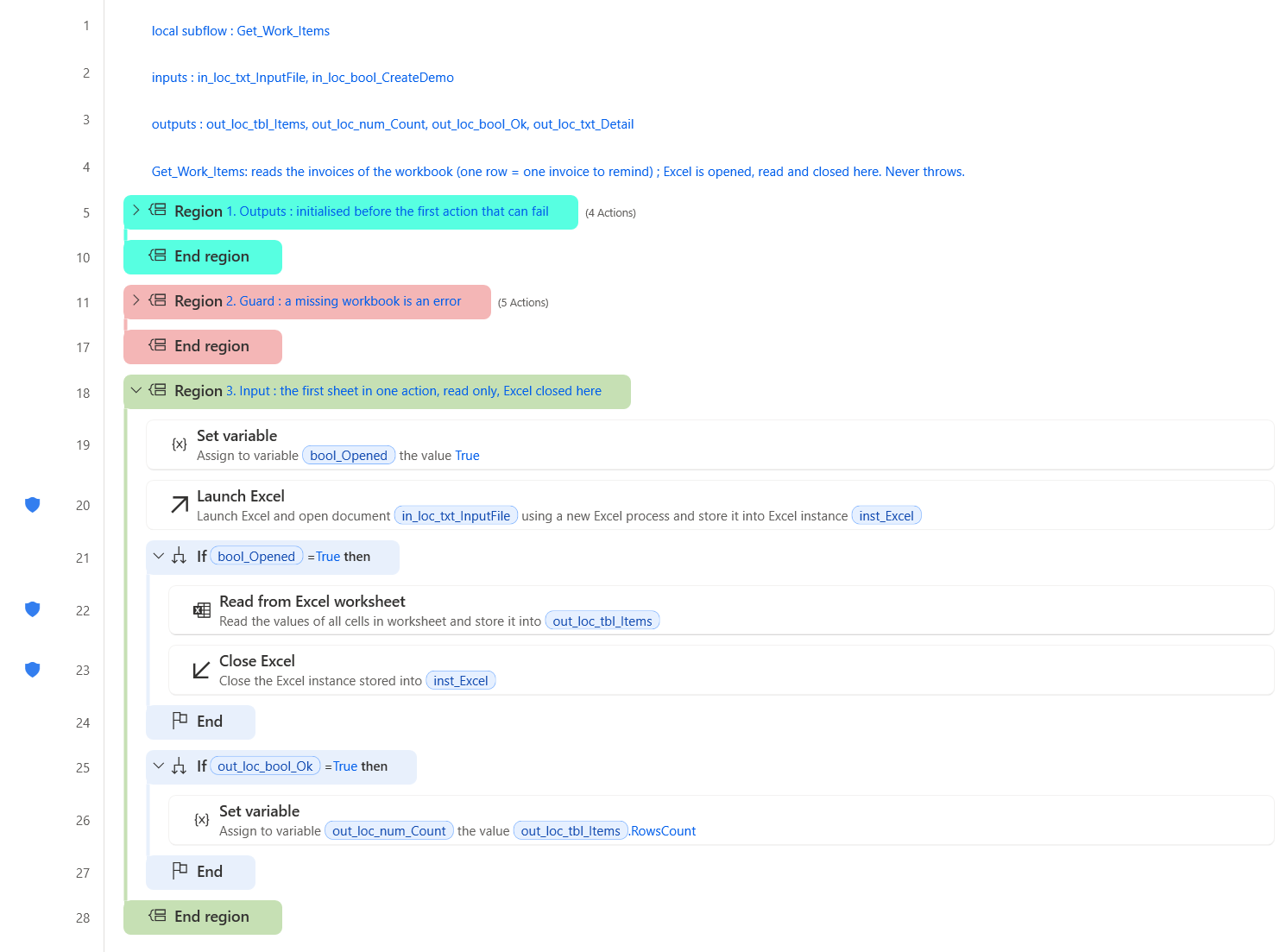
Get_Work_Items of the example: region 3 reads the workbook with Excel and closes it
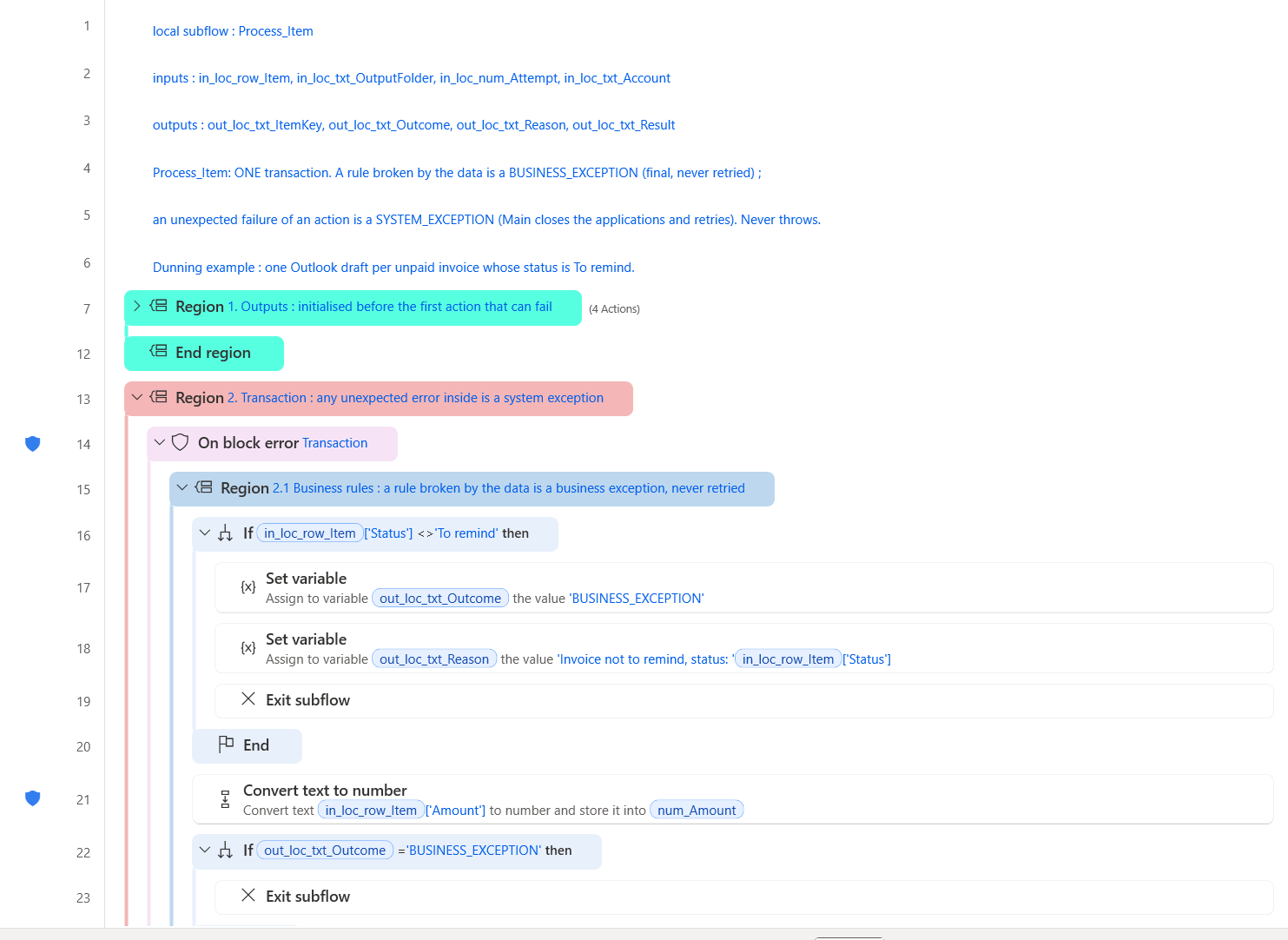
Process_Item of the example, region 2.1: the new rule on the status comes first
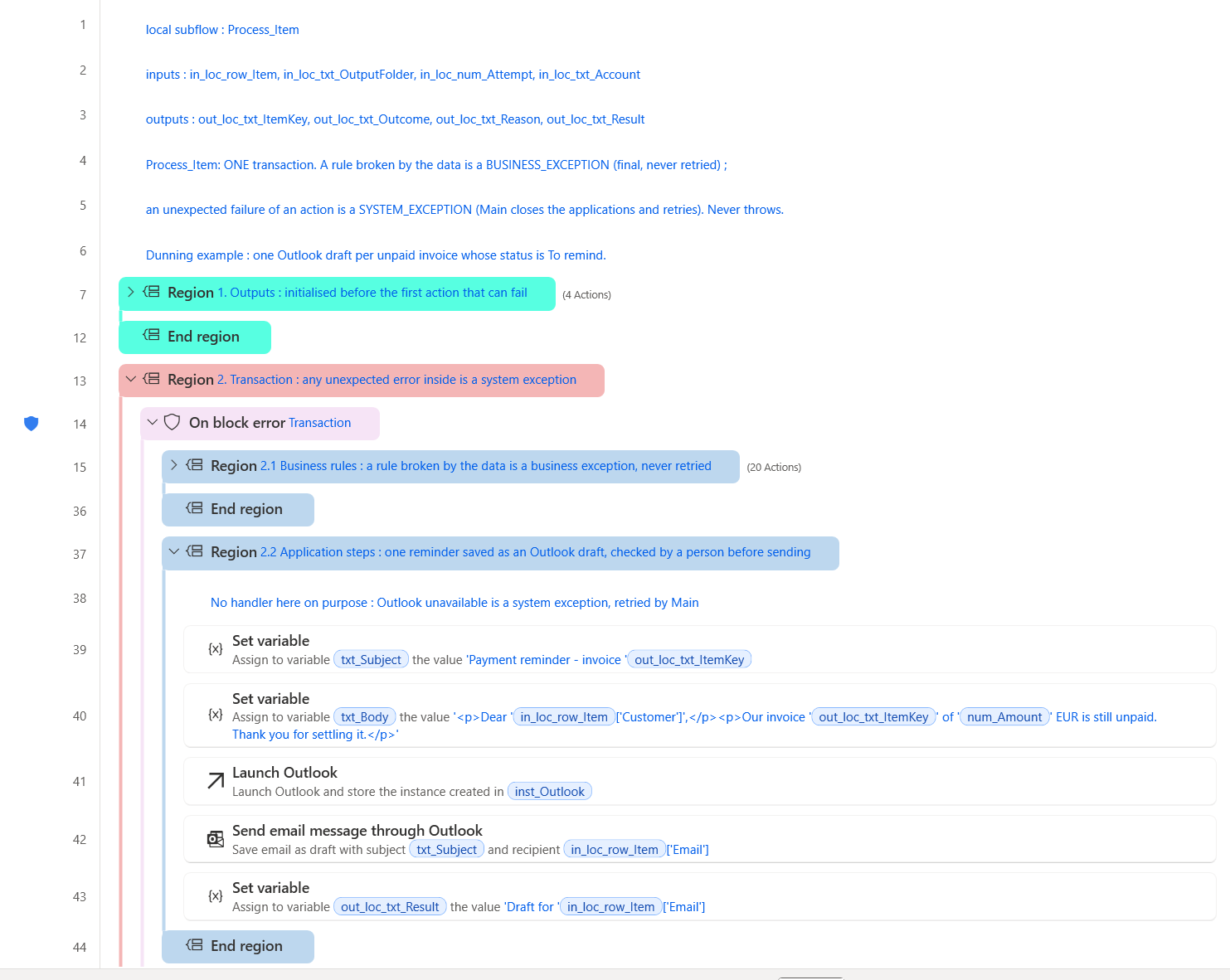
Process_Item of the example, region 2.2: the reminder saved as an Outlook draft
Result.
Testsof the example: 24 PASS, 0 FAIL (2026-10-18, 202 s for the last run).Mainon a workbook of 5 invoices: COMPLETED, 2 reminders saved as Outlook drafts, 3 business exceptions (one paid, one amountabc, one addressno-email), the run report saved as a draft too. Nothing was sent.- About 5.5 s per reminder in the designer, Outlook included (2026-10-18).
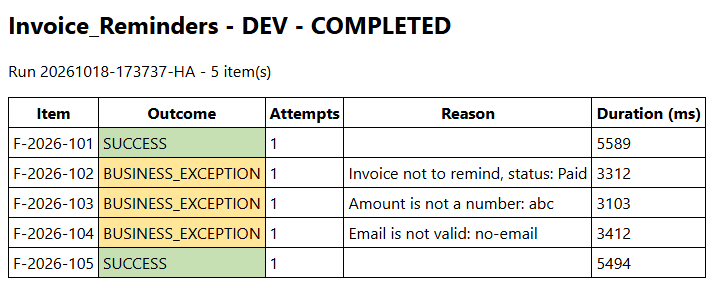
The run report of the example: 2 reminders, 3 invoices listed with the reason
Benefits.
- Only the business part was written: the regions in the table. The settings, the retries, the screenshots, the log, the run report and the notification came from the template, unchanged.
- The same folders, log and report as every other process made from the template: the support team reads them all the same way.
- A person reads each reminder before it leaves: the robot prepares, the accountant decides.
- Each rule is tested before a run: five test invoices, one case per rule.
Performance
- Tested run of 2026-10-19 in the designer (PAD 2.73.155):
Mainon the 6 demo items ended COMPLETED in 148 s - 2 successes, 3 business exceptions, 1 system exception after 3 attempts. - About 3 to 5 s per item in the designer: one call of
Process_Itemand one to three lines of log. The item in system exception took 30 s: three attempts, each with a screenshot, the recovery and a pause of 2 s. Tests: 24 cases in 151 s (2026-10-19).- Every time was measured in the designer, which draws each action on screen. A run from the console or from a cloud flow was not measured.
Limits
- Templates need PAD 2.72 or later; tested on 2.73.155. Only My templates was tested: sharing the template with other makers was not.
- A flow made from the template is a copy: it does not follow later changes of the template.
- An application instance (Excel, a browser, Outlook) cannot cross the boundary of a local function: open, use and close it in the function that does the work, as
Get_Work_Itemsof the example does with Excel andSend_Notificationwith Outlook. ProcessesToClosecloses every process of that name, windows of the user included. On a PC that is also used by a person, list only what the robot opens.- Not proven by
Tests: an Outlook message drafted or sent bySend_Notification(the channel isNONEin the demo; the example below drafted reminders and its run report), a retry that succeeds after a passing failure, a FATAL run, a run from the console or from a cloud flow. - The work items are read once per run from one list. Power Automate work queues are not used; replacing the loop of
Mainby a work queue was not tested. - The notes show in the dialog of each action, not on the canvas.
out_glob_txt_ErrorMessagecan carry data of an item: mark it as sensitive when the items hold personal data.
Files
| Subflow | Scope | Lines | Role |
|---|---|---|---|
Main |
Main | 193 | The run: minimal state, guarded run (init, work items, one transaction per item with retries), run status, end (report, summary, notification), clean-up and outputs. |
Tests |
Global | 190 | 24 cases: each function and each recovery path called with fixed inputs, one PASS or FAIL line per case in a report. Run it with Run from here on its first action. (optional) |
Verify |
Local | 12 | Writes one PASS or FAIL line of Tests to the report. (optional) |
Init_Run |
Local | 48 | Creates the project folders (missing parents included) and builds the run id and the name of the daily log file. |
Write_Log |
Local | 33 | One line per event, filtered by level; WARN and above also go to the run log of Power Automate. |
Load_Config |
Local | 78 | Defaults, then the rows of Config.csv for every environment, then the rows of the current environment; numbers checked; returned as JSON. |
Get_Work_Items |
Local | 33 | Reads every work item once, as a table (one row = one transaction); writes the demo file when asked. |
Process_Item |
Local | 45 | One transaction: the business rules, the application steps and the outcome of the item. |
Take_Evidence |
Local | 12 | A screenshot named after the run, the item and the attempt. |
Close_Applications |
Local | 26 | Closes the running processes of a list: at start, before a retry and at the end. |
Write_Run_Report |
Local | 34 | The result of every item as a CSV file and as an HTML page. |
Send_Notification |
Local | 37 | The HTML report by Outlook, as a draft or sent; NONE turns it off. |
To_Json_Text |
Local | 9 | Escapes a text for a JSON value. |
- Output of the test run, in
expected/:run-report.csv,tests-report.txt
Tested on
| PAD version | Date | Path | Result |
|---|---|---|---|
| 2.73.155 | 2026-10-18 | Rebuild, Save as Template, Publish, then New › Flow from template | Pass |
| 2.73.155 | 2026-10-18 | A process from the template: the invoice reminders example | Pass |
| 2.73.155 | 2026-10-19 | Full flow: Tests 24 / 24, then Main | Pass |
Authors: Anne (AI agent), HyperAutomatisation · Changelog · Report a problem